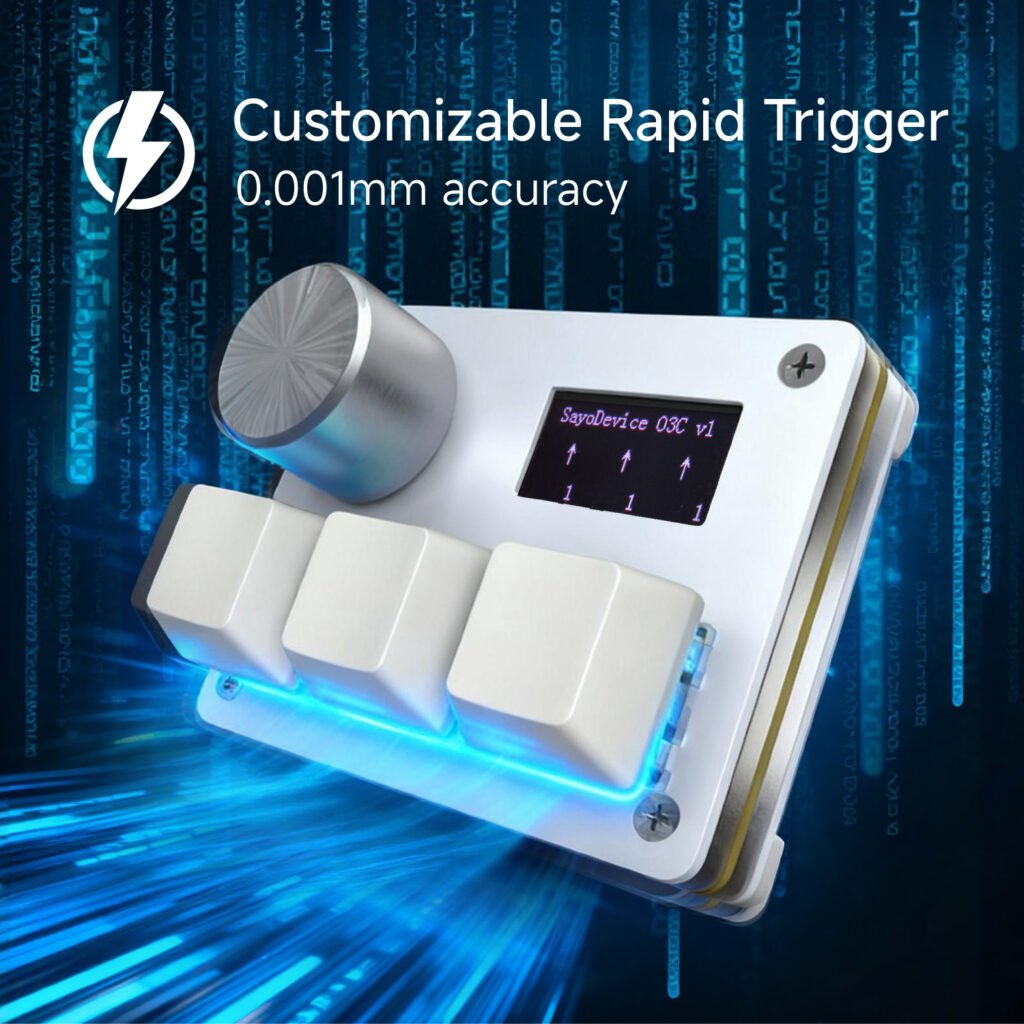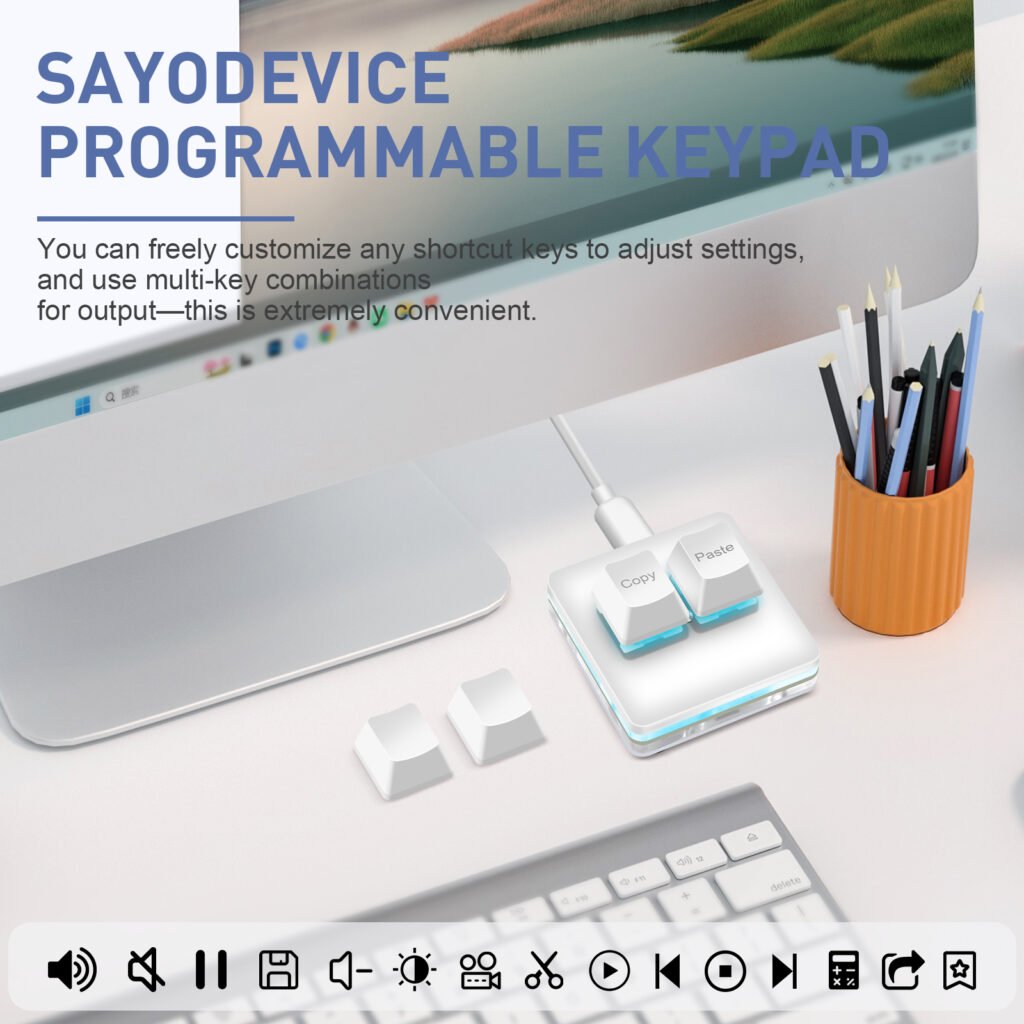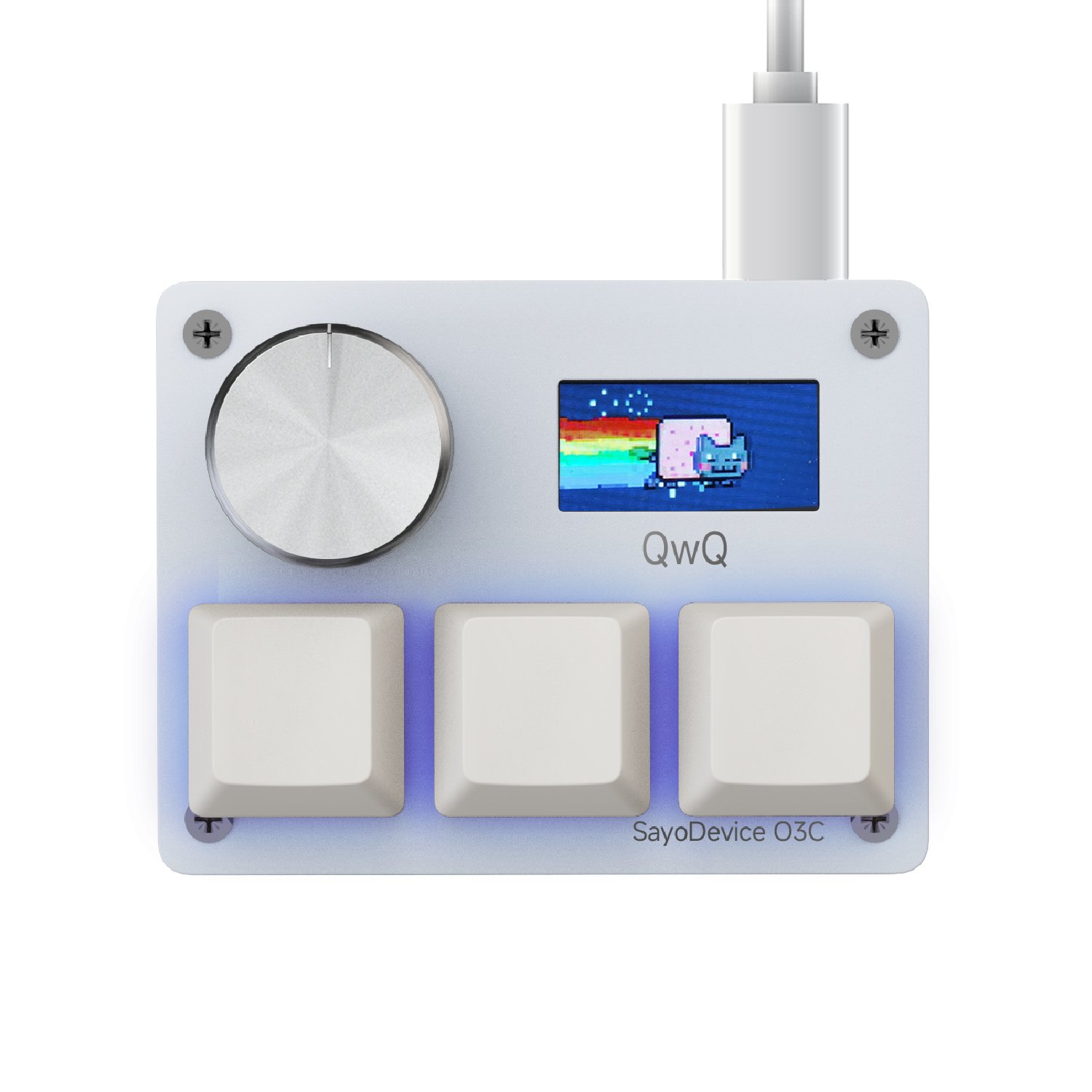
The SayoDevice web driver connects to supported hardware through a compatible desktop browser. Because the browser must communicate with a USB device, the process is different from opening a normal settings page.
Before opening the driver
Connect the device directly with a known data-capable USB cable. A charge-only cable can power lights without carrying configuration data. Close other configuration tools that may already be using the device, and use a current Chromium-based desktop browser such as Chrome or Edge.
Grant device access
Open the web driver and choose the connect command. The browser displays a device chooser. Select the matching SayoDevice product and approve the connection. The site cannot configure a device that was not selected in this browser prompt.
Make one change first
Choose the current profile and change one assignment or one moderate input value. Apply or save the profile, then test the device in a simple text field or the intended application. A small first change confirms that communication and saving both work before a complete layout is rebuilt.
Use sensible magnetic settings
On products with Hall Effect controls, begin with moderate actuation and release distances. Extremely sensitive settings can cause input from normal finger movement. Tune in small steps and keep a stable profile available for troubleshooting.
If the device is not listed
Reconnect the cable, try a direct USB port, close other device tools and reload the page. Confirm that the browser supports direct device access and that the operating system recognizes the hardware. If possible, test another data cable before changing firmware.
Before a firmware update
Confirm the exact model and follow only instructions supplied for that model. Keep the cable and computer power stable, and do not close the browser or disconnect the device while an update is in progress.
If connection still fails, contact support with the product model, operating system, browser version, cable and port tested, and a screenshot of the browser message. Those details make the first reply much more useful.